
How to hide a menu in odoo
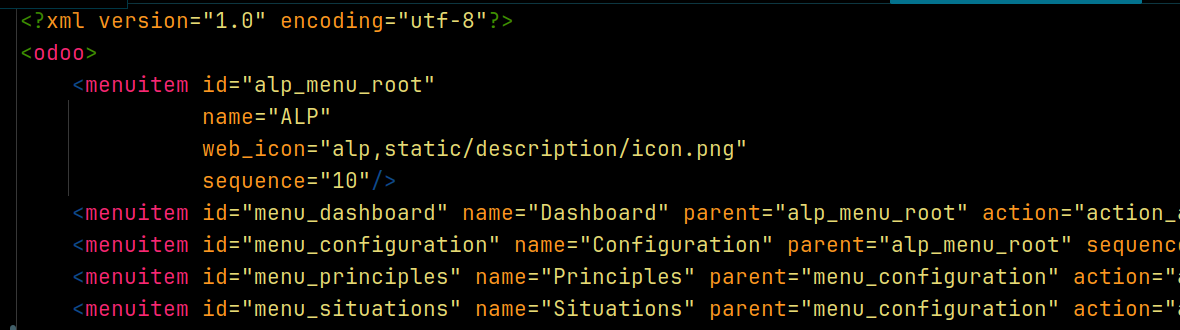
This one is going to be as quick as possible, because honestly, what we’re trying to achieve here is very simple. And the good part? This approach works perfectly from Odoo 14 all the way up to Odoo 18.
Hiding menus in Odoo usually comes down to two real-world scenarios:
- You’re hiding a menu from your own custom module
- Or you’re hiding a menu that comes from Odoo core apps, using inheritance
Let’s go through both without overcomplicating things.
Case 1: Hiding a Menu in custom modules
This is the easiest case, If the menu is defined inside your custom module, all you need to do is add active="False" to the menuitem tag.
<menuitem id="alp_menu_root"
          name="ALP"
          active="False"
          web_icon="alp,static/description/icon.png"
          sequence="10"/>
Case 2: Hiding Menus using Inheritance (External Modules)
So menu inheritance does not work the same way as form or tree views. You cannot use XPath here. Instead, you directly override the menu record using its technical ID.
<record model="ir.ui.menu" id="account.menu_finance">
    <field name="active">False</field>
</record>
A few important things I learned the hard way:
- The id must be the exact technical ID of the menu
- You must include the module name (e.g. account.menu_finance)
Once active is set to False, Odoo simply ignores the menu.
This is one of those features that feels bigger than it actually is. No need for complex logic or permissions if all you want is to hide a menu cleanly. setting active = False is the most reliable and burnout-free approach I’ve found over the years.
If something doesn’t behave as expected, feel free to start a conversation below. I’m always happy to help.
Till next time — happy coding without burnout 🔥