
How to Keep Odoo Wizards Open After Clicking a Button (Odoo 14–18)
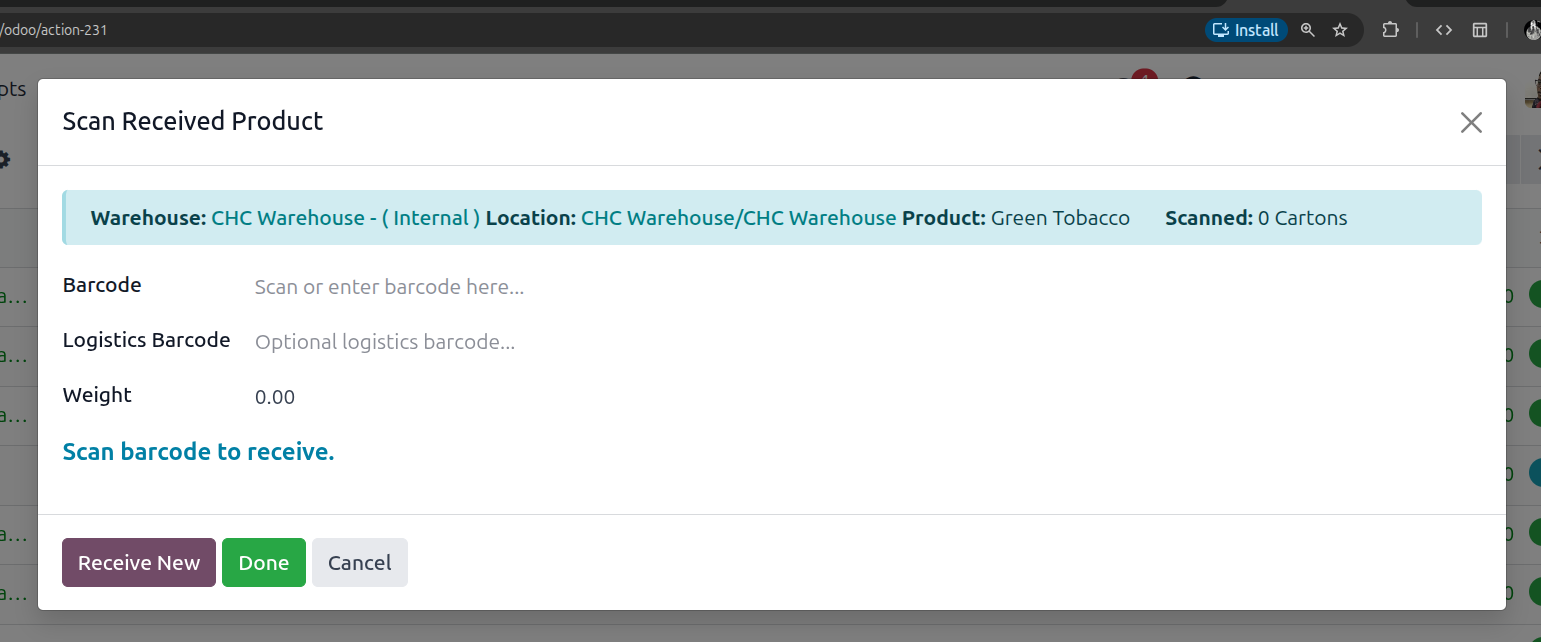
By default, Odoo wizards love to close themselves.
You click a button → the popup closes → job “done”.
That’s fine… until it isn’t.
I ran into this problem while building a barcode-scanning wizard. One scan worked perfectly. Ten scans were annoying. One hundred scans? Completely unusable. Reopening the wizard every single time is not how users should work and definitely not how we avoid code burnout.
Below are two simple and proven ways to keep an Odoo wizard open after clicking a button. I’ve used both in production, depending on the use case. These solutions work from Odoo 14 all the way up to Odoo 18.
Sol 1: Reopen the Same Wizard
(The “Return Action” Method)
This is the most straightforward and reliable approach.
How It Works
After your button logic finishes running, you simply return the same wizard action again. Odoo technically closes the popup but immediately opens it again. From the user’s point of view, the wizard never really closes.
XML View Example
<form string="Scan Barcodes">
    <sheet>
        <group>
            <field name="barcode"/>
            <field name="scanned_cartons" readonly="1"/>
            <field name="message" readonly="1"/>
        </group>
    </sheet>
    <footer>
        <button name="action_scan_carton"
                type="object"
                string="Scan"
                class="btn-primary"/>
        <button string="Close"
                class="btn-secondary"
                special="cancel"/>
    </footer>
</form>
Python Code
class BarcodeScanWizard(models.TransientModel):
    _name = 'barcode.scan.wizard'

    barcode = fields.Char(string='Scan Barcode')
    total = fields.Integer(string='Total Scanned', default=0)

    def action_scan_carton(self):
        # Save the barcode
        self.env['product'].create({
            'barcode': self.barcode
        })
        # Update counter
        self.total += 1
        # Clear input for next scan
        self.barcode = ''
        # Reopen the wizard
        return {
            'type': 'ir.actions.act_window',
            'res_model': 'barcode.scan.wizard',
            'res_id': self.id,
            'view_mode': 'form',
            'target': 'new',
        }
What Happens Behind the Scenes
When the user enters a barcode and clicks Scan, the backend processes and saves the data, clears the input field, and returns the wizard action again. The popup reopens instantly, allowing the user to scan the next barcode without interruption. No extra clicks, no reopening, no frustration.
This is the most reliable approach when data must be written to the database repeatedly.
Sol 2: The Hidden Button Trick
(The Onchange Method)
This one feels like a hack—but it’s a clean and very effective one.
How It Works
Instead of using a real button, this approach relies on a Boolean field. The checkbox is hidden, and its label is styled to look like a button. When clicked, the Boolean value changes and triggers an @api.onchange method.
Because onchange logic does not close the wizard, the popup stays open automatically.
Python Code
class SimpleSearchWizard(models.TransientModel):
    _name = 'simple.search.wizard'

    search_text = fields.Char(string='Search')
    do_search = fields.Boolean(string='Go')
    results = fields.Many2many('res.partner', string='Results')

    @api.onchange('do_search')
    def _do_search(self):
        if self.search_text:
            partners = self.env['res.partner'].search([
                ('name', 'ilike', self.search_text)
            ])
            self.results = partners
XML View
<form string="Search Growers">
    <sheet>
        <group>
            <field name="search_text"/>
        </group>
        <!-- Hidden button trick -->
        <div class="form-group">
            <label for="do_search" class="btn btn-primary">
                Search
            </label>
            <field name="do_search" class="o_hidden"/>
        </div>
        <notebook>
            <page string="Results">
                <field name="results">
                    <tree>
                        <field name="name"/>
                        <field name="id_number"/>
                    </tree>
                </field>
            </page>
        </notebook>
    </sheet>
    <footer>
        <button string="Close"
                class="btn-secondary"
                special="cancel"/>
    </footer>
</form>
What the User Experiences
From the user’s perspective, everything feels natural. They see what looks like a normal Search button and click it. Behind the scenes, a hidden checkbox toggles, @api.onchange runs automatically, results refresh instantly, and the wizard stays open the entire time. No popup closing, no reloads—just a smooth experience.
Once you understand this pattern, it becomes incredibly useful.
If this solves a pain point for you, or if you’re stuck implementing it in your own flow, feel free to start a conversation below. I’m always happy to help.
Till next time — happy coding without burnout 🔥